
 Widad Khan

To Edit Google Form After Submission
- Login to the required Google Account.
- Go to Google Forms.
- Create or choose a form template.
- Go to the form’s ‘Settings‘ and open the ‘Responses‘ tab.
- Enable the ‘Allow response editing‘ option.
Tip: Responders can click the ‘Edit your response‘ button on the thank-you page after submission. If the form owner allows, responders can edit using the Form Response Copy received via email.
Google Forms provide us with many features and we have talked about different ones in our articles. Google Forms allow the users to edit form responses even after they are submitted if it is allowed by the form owner. This feature is not possible with many other form submitting alternatives. Google forms can be used in many different scenarios which may require users to edit their responses after those are submitted earlier. It can be used in order forms or claim forms, etc. Let us discuss some of the scenarios as well as how to edit Google Form after submission in this article.
What is meant by editing Google Form after submission?
There’s a possibility that we have to change our already submitted responses to any Google Form. Changing our submitted answers is what we can call ‘edit’ in Google Forms. Google Form allows its user to edit their responses after they are submitted to change their answers in responses according to current needs. We used Google forms to fulfill our different needs in earlier articles and one of which was quiz. We can say for sure that allowing people to edit a quiz after submission will lose the whole purpose of the quiz . That’s why we don’t allow users to edit those types of google forms. Still, if a teacher focuses more on the correction of students, he may allow the students to edit after submission as to motivate and encourage the students for improved learning.
Why do we edit Google Forms?
We live in an open society where everyone is allowed to have a different opinion and there is a freedom of choice. Let us consider scenarios where our views might differ and we may have a change of opinion and hence require a change in an already submitted Google Form. If we are talking about orders and demand forms, then we can have different demands at different times.
We can simply take the example of Christmas trees, they are only sold before 25 December and after 25 December their demand totally vanishes. Market conditions may also have an impact on orders, some items get sold very fast and demand doesn’t decrease so shopkeepers have to order for more by changing their current demands and supplies and getting more items.
How to edit Google Forms after submission?
We will learn how to edit Google form after submission by taking a simple order form. We will take order form and utilize the edit function to edit the demands and see how things go in Google Form responses.
Design the Order Form
Make sure we are logged in our required business account. Some may use their personal email accounts for business purposes and some may have separate accounts. Using separate accounts will be very beneficial and will make things easier and tidy, whereas using the same things may mess up their email inboxes.
Step 1: Login the required Google Account.
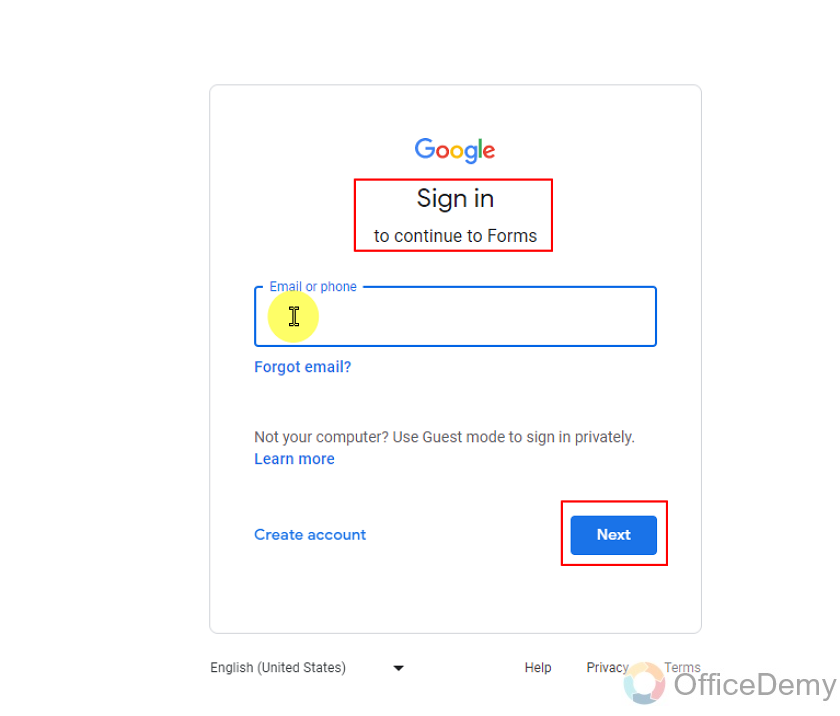
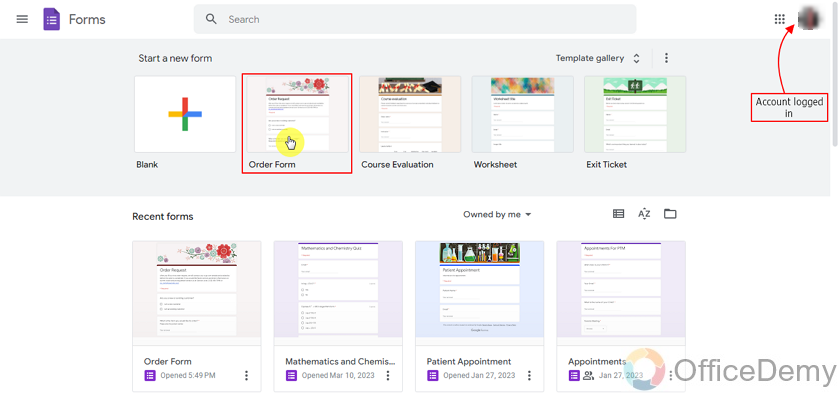
Step 2: Go to Google Forms.
After signing in, we can choose to completely customize our form or we can use any template provided by Google Forms. For the purpose of this demonstration, we will use template and hence directly jump into our topic of edit form after submission.
Change settings to enable editing after submission of Google Forms
We have to enable the form to accept changes after submission so that our scenario can be handled. This setting can be applied or changed by the form owners or collaborators.
Step 1: Go to the ‘Settings’ menu of the form.
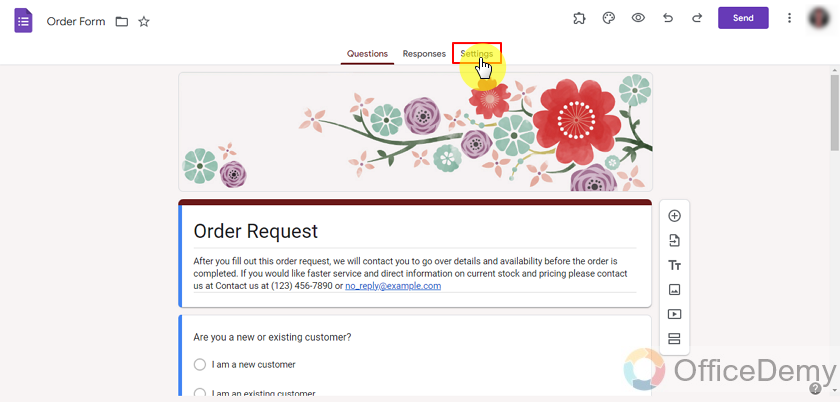
We can go in the settings tab of our form as shown above. There, we see all the settings options that can be used with this form.
Step 2: Open the ‘Responses’ tabinside the settings.
Click on the caret icon in front of the Responses as shown below:
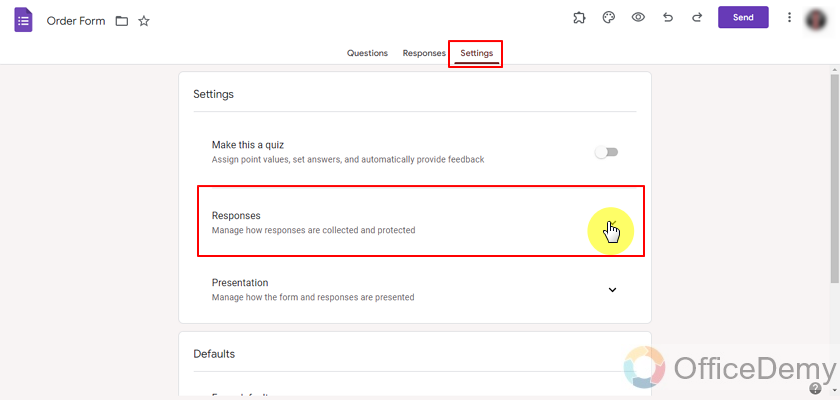
Google Forms settings are very uniquely designed and settings are bundled together according to their uses. Every option related to responses will be in responses mini settings, our required option lies there as well.
Step 3: Enable the ‘Allow response editing’ option as shown in the picture below:
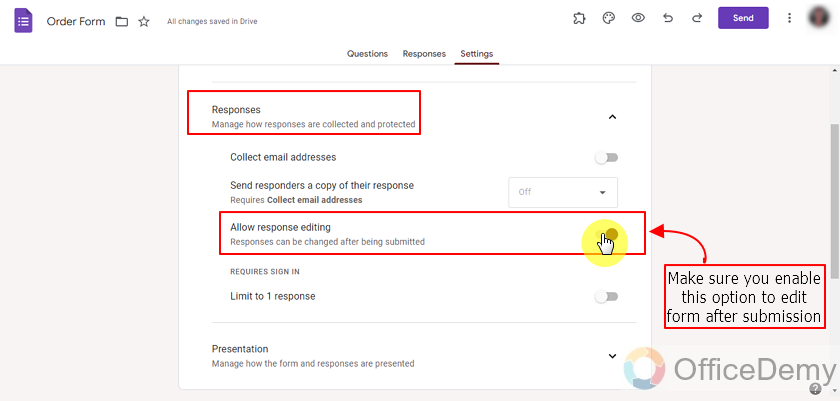
Enabling this option will allow our users to submit their responses and they can also edit their form responses afterwards. We can also use other options for settings here but let’s leave them be for now.
Preview the Form
Step 1: Preview the form and see if it allows editing responses after submission.
We need to test our forms after we make them, now we are using templates but we need to check whether our edit option works now and how it works. To test our forms we need to use a preview or copy link to our form.
Click the preview icon (eye icon) situated at the top right corner of the form to preview the form.
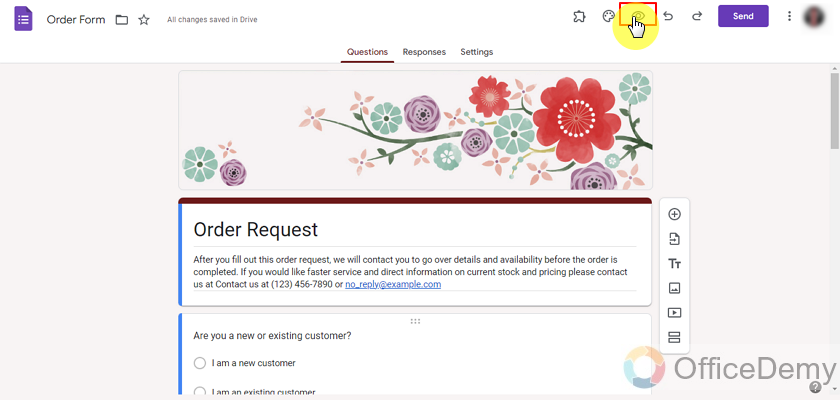
Previewing our form can help us fill our form ourselves and see how the form looks to responders. We will fill one response and see how it is and then edit it later on.
Submit a response to the Google Form
We can see in the response tab that there is one response. Google form will also tell us that response editing is not allowed for the form owner. Only the person who filled it once is allowed to edit his or her response.
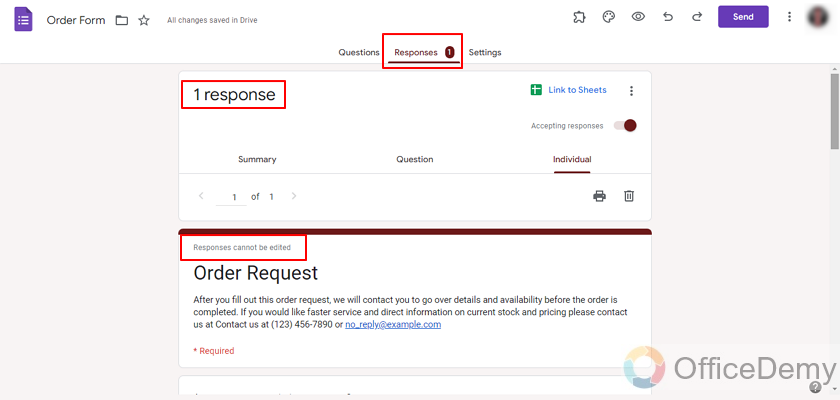
Let’s see the size and color from this form and edit it from the responder and see how it goes in responses.
The current responses are:
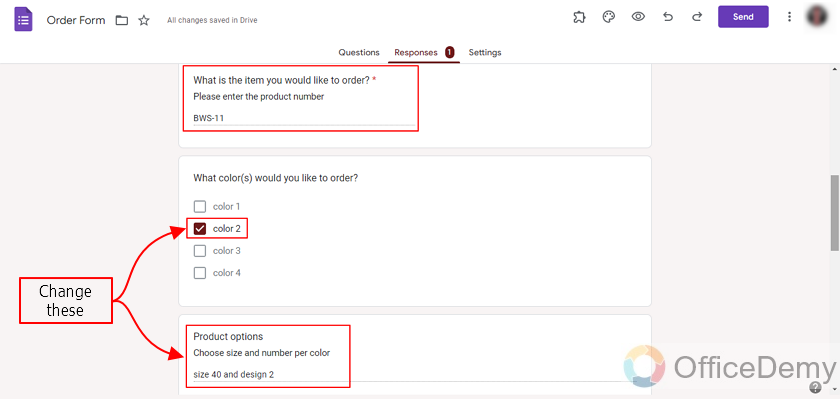
In order to edit this response, we can go back to our Google Form submission by the responder account and edit our responses from there.
Edit the form using Thank You page after submission
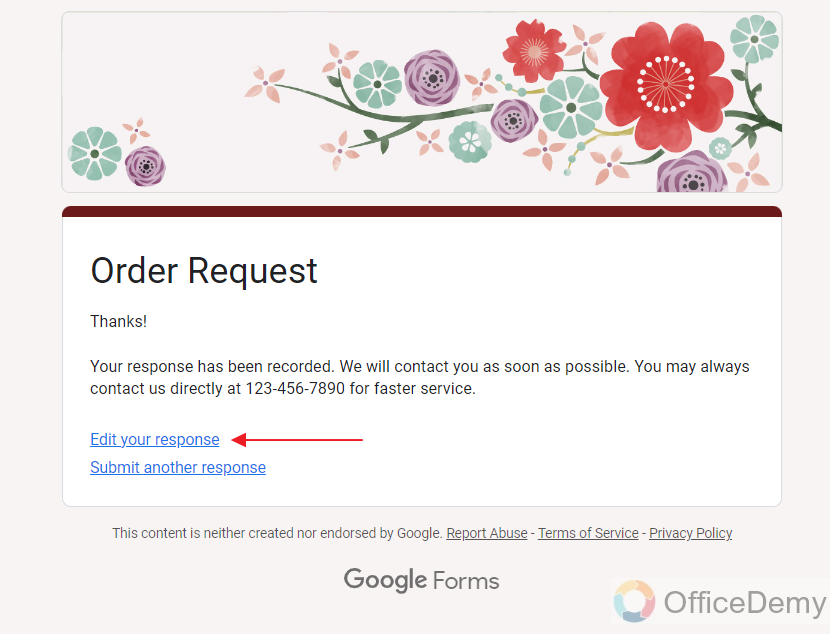
After the form is filled once, “Edit your response” button appears along with the thank you message as:
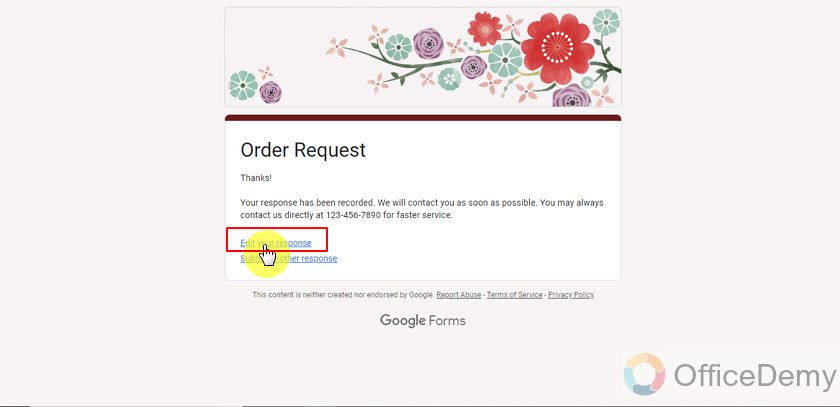
By clicking ‘edit your response’, we can edit our response and change our order. Let’s change product color and product options and check again from our Form responses.
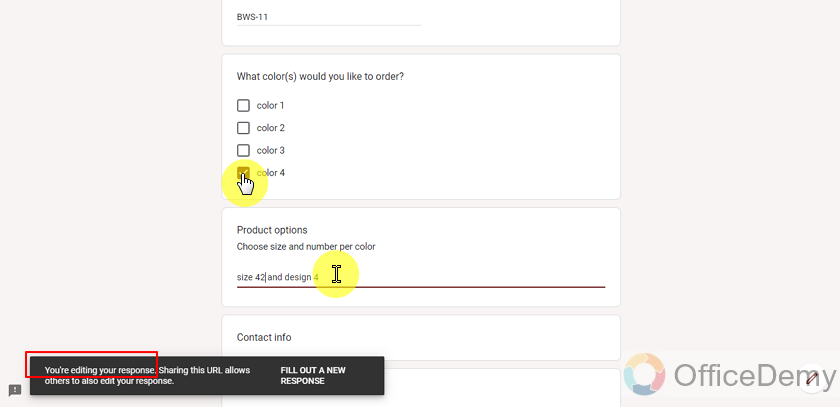
After changing, we submitted it again and let’s check from our responses and see if our order is changed for the form owner or not.
This is the form owner’s view of responses:
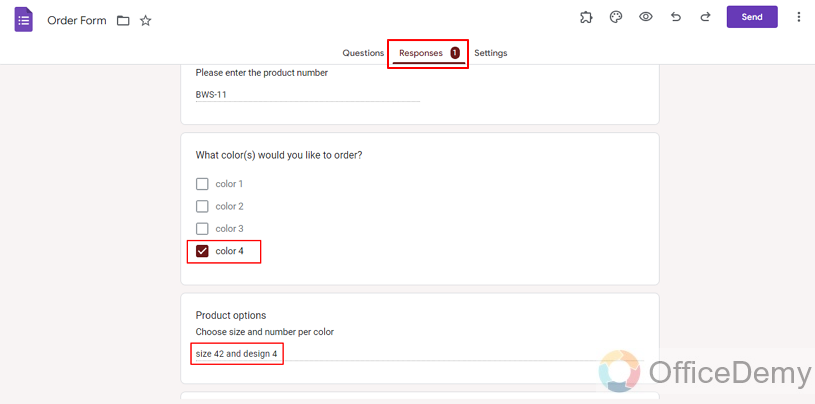
We can see it’s changed according to the editing in our responses and order has been updated. It was edited right away from order submission.
Edit the form using Form Response Copy
We can also change it after sometime even without the thank you page. If the form owner enables ‘sending a copy of the form’ to the respondent, we have the form response copy saved in our Google Account. The received copy can be used to see what we ordered and edit it later on.
This is how the form submission appears in our mail:
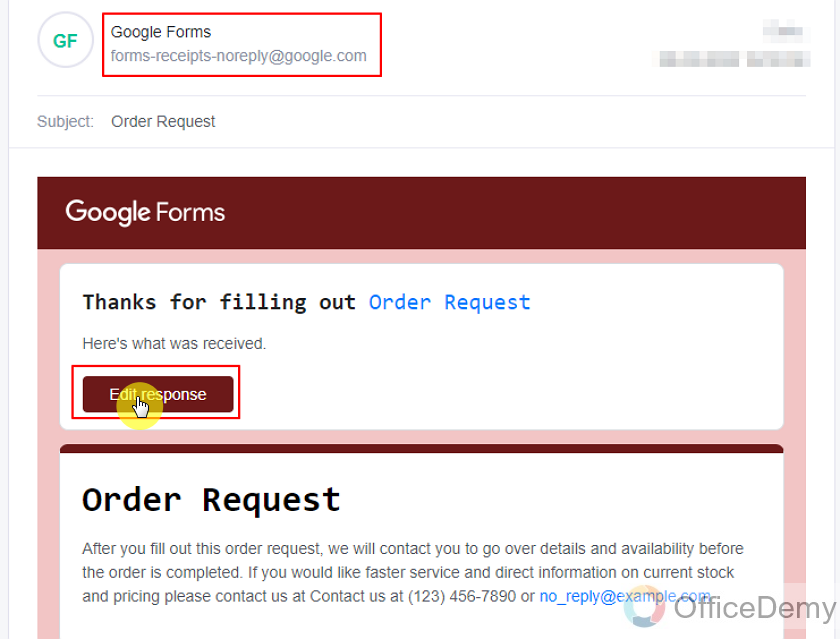
Responders can use the “Edit Response” button to edit the already submitted response.
Things To Remember
- Form owners can allow or disallow the responders to edit their submitted form after submission.
- Only if the form owner allows response editing, a responder can get a chance to change or edit his or her filled response.
- A form owner may also allow the responders to keep a copy of their submitted responses.
Frequently Asked Questions (FAQs)
Can I always edit my form after submission?
No, only if the form owner allows editing after submission, the responders can change their responses after submitting the form once.
How do I know if a copy of responses will be sent to my email after form submission?
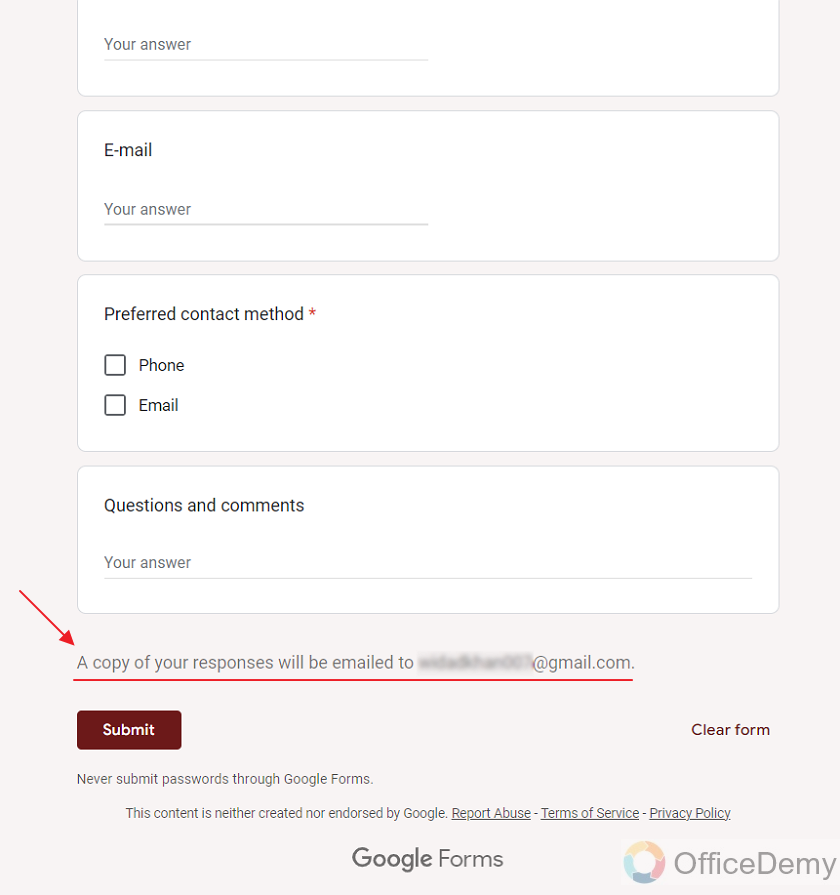
If the Google Form will always send a copy of responses to the responders, it will indicate this before the submission button as:
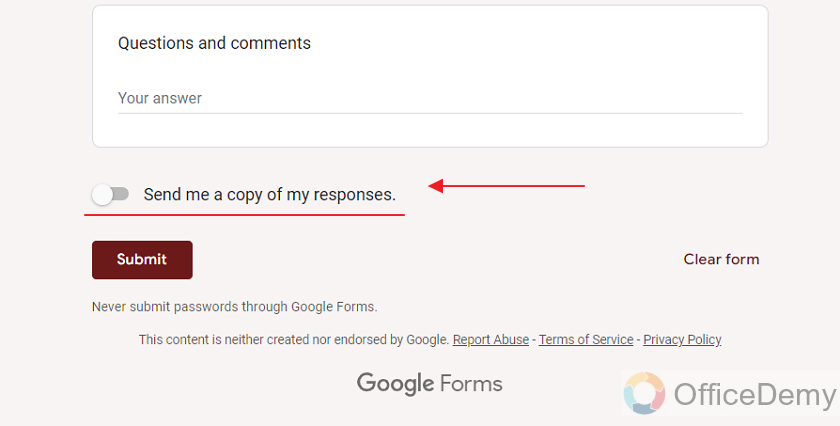
Also, if a Google Form does not always send copy of responses but allows the responders to receive a copy if they want; it will also prompt a radio button at the end of the form, asking whether or not you would want to receive a copy to your email address as:
A responder may turn it on by clicking the radio button as:
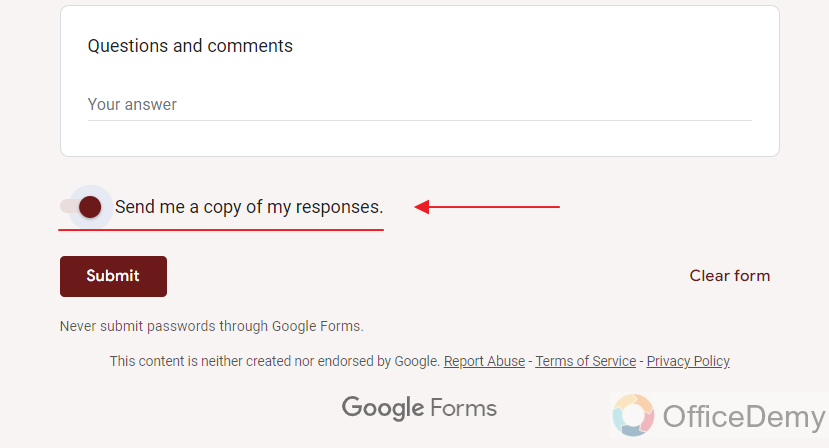
This way, a copy of the filled responses will be sent to the responder.
How do I know if the form allows editing responses after submission?
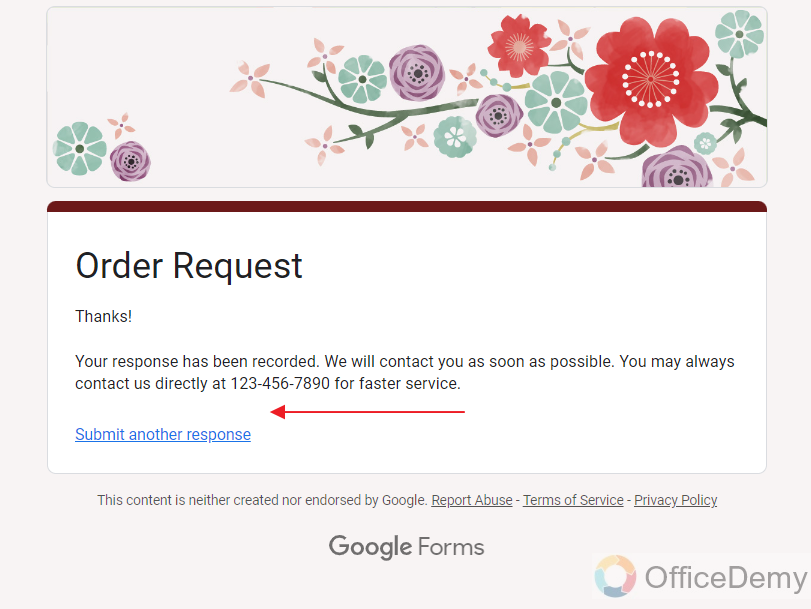
A responder can know if a form allows editing response after submission after submitting the response. After submitting the response, if editing is allowed, it will display ‘editing’ button along with the ‘thank you message’ as:
If form does not allow ‘editing response after submission’, editing button will not appear as:
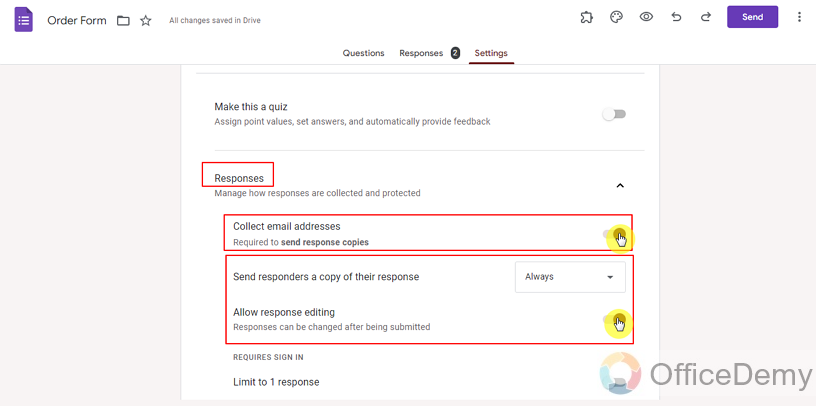
How can I enable the settings for sending a copy of responses and editing after submission as a form owner?
In order to enable sending the response copy and edit after submission, we can go to settings and further in response tab, there, we can change settings to meet our needs as:
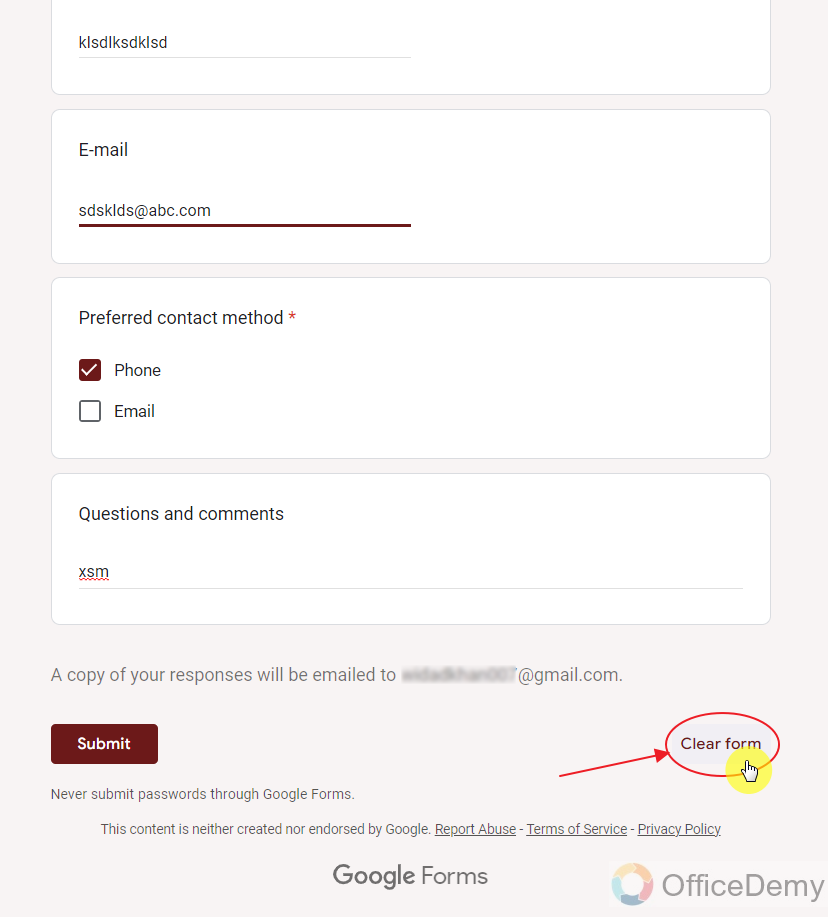
How can I empty or clear my form while filling responses?
If, somehow, a responder feels that the form is filled wrongly and he or she would like to empty the responses. It can be done using the ‘Clear Form’ button at the bottom of the form as:
Now, the Google Forms will prompt the warning and ask for a confirmation of the action as:
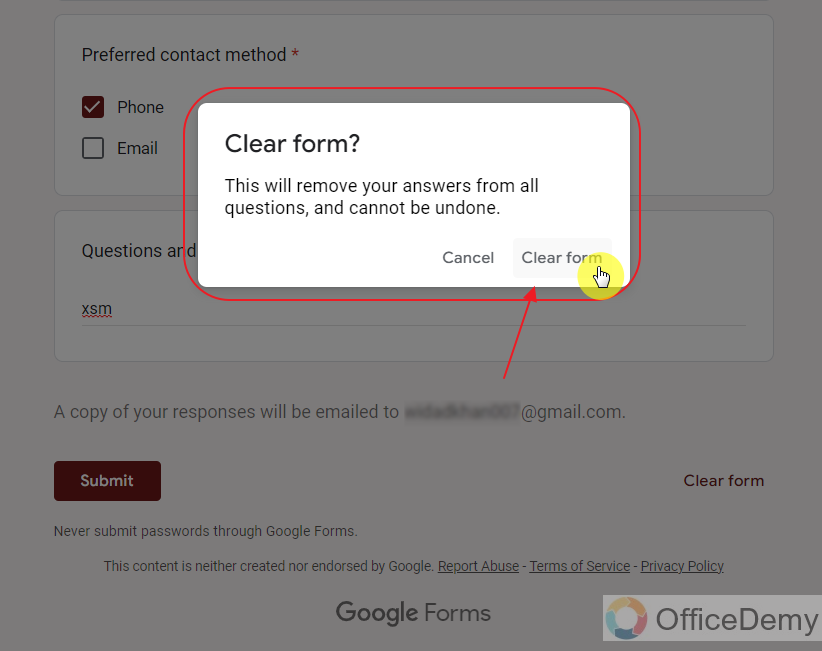
Click on the ‘Clear Form’ to proceed and the form will be cleared as:
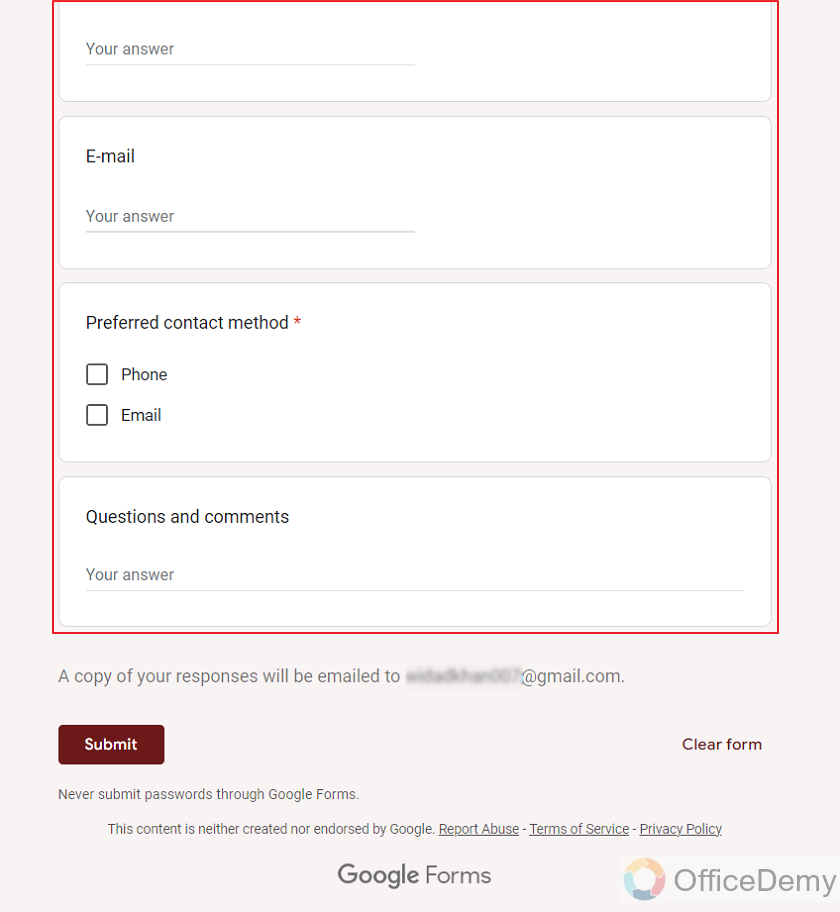
How can I collect verified email addresses of the responders?
If you are a form owner or collaborator and would like to collect verified email addresses of your responders. You can enable this setting from the Settings -> Responses tab as:
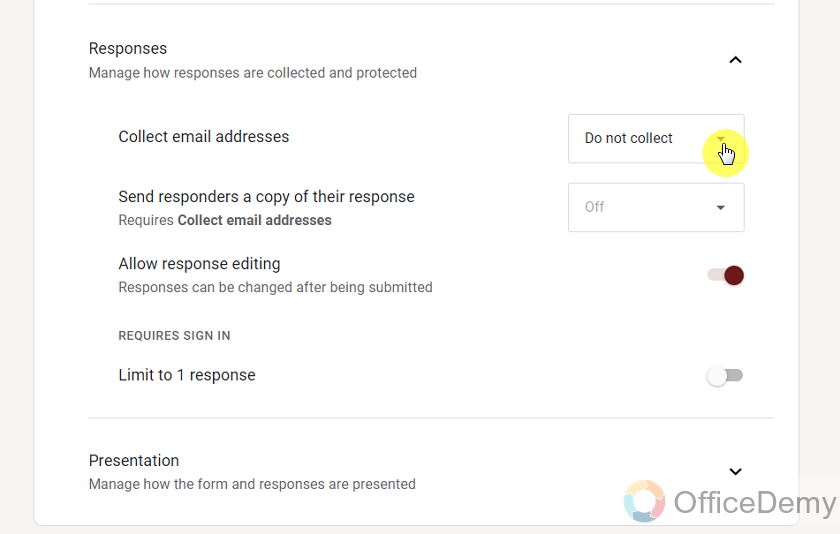
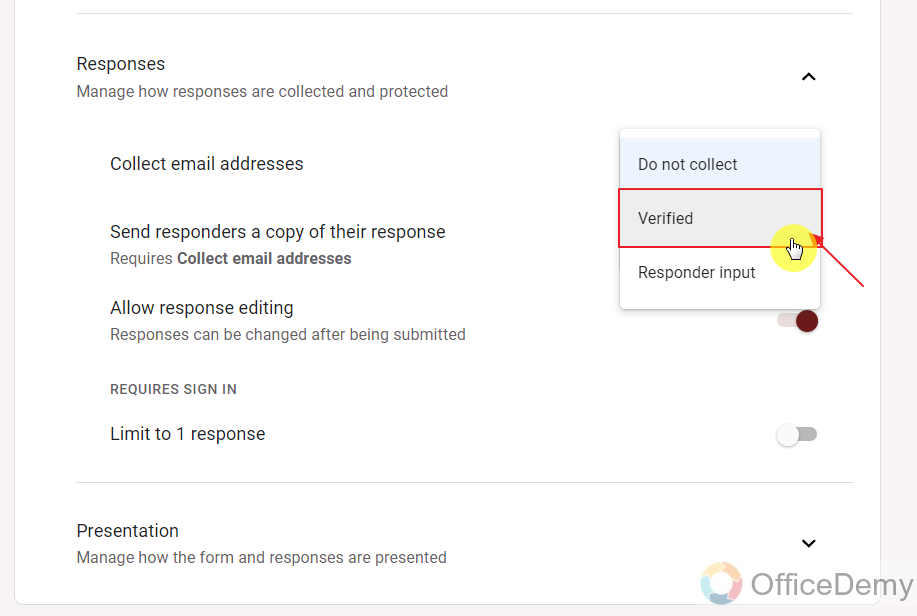
Click on the caret icon next to the ‘Collect Email Addresses’ to show other options and choose ‘Verified’ as:
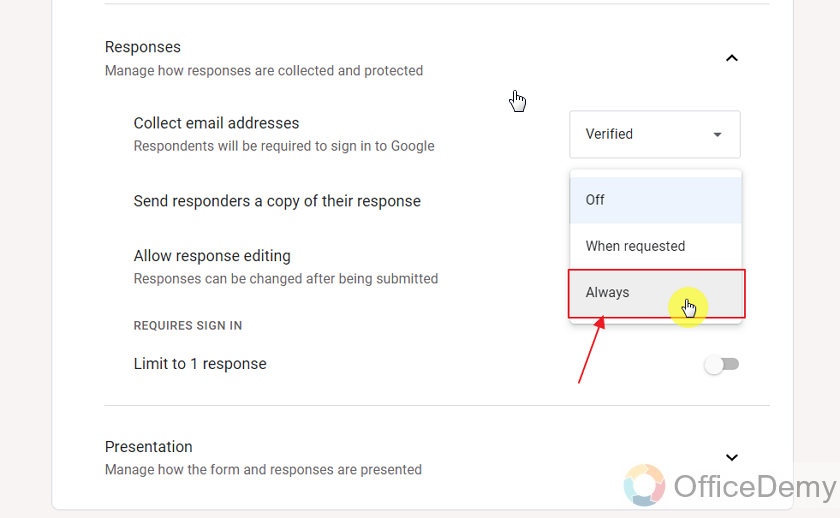
Now, you may also choose to ‘always send response copy’ to responders as:
Conclusion
In this article, we discussed various scenarios where we might need to edit our submitted responses to the Google Form. We also discussed how we can enable or disable these settings as a form owner. We discussed the following in detail:
- Design the Order Form
- Change settings to enable editing after submission of Google Forms
- Preview the Form
- Submit a response to the Google Form
- Edit the form using Thank You page after submission
- Edit the form using Form Response Copy
Thanks for reading!